


Once the cameras are installed, the first question is usually: how do I watch them on my phone? Hik-Connect is an app and cloud service from Hikvision for viewing cameras, receiving alerts and controlling devices remotely. These steps apply to NVRs, DVRs, cameras and most Hikvision devices.
Before you start
- The recorder is connected to the router by a network cable, and the router is online.
- The device is activated and has a strong password.
- The Hik-Connect app is installed on your phone and you have an account.
1. Enable the Hik-Connect service on the device
The service must be enabled on the device before you add it to the app. You can do this from the mobile app itself, from the device web page or from the iVMS-4200 software. When enabling it you set a verification code that you will need when adding the device.
2. Add the device by scanning the QR code
- Open the app, tap the add (+) icon on the device list, then choose Scan QR Code.
- Scan the QR code, usually printed on a label on the back of the device. You can turn on the phone torch in low light, or pick a photo of the code from your album.
- Tap Add on the result page, then enter the verification code. The default code is usually on the device label; if there is none, use the code you set when enabling the service.
- Tap Finish, and the device appears in the list with its cameras.
If you see a DDNS step, enabling it sends the stream by IP address first, which is faster; if you skip it, the device works through the Hik-Connect service.
Common problems and fixes
- Device offline: first make sure it is connected to the network and the internet.
- Device bound to another account: it has to be unbound from the first account before you add it to yours.
- Device not activated: an activation page appears so you can set a password before adding it.
- Access control devices: they need activating and network setup in software such as iVMS-4200 before you add them.
Security and usage tips
- Use a strong, different password for the device and for the app account.
- Share devices with family members or staff through the app sharing feature instead of sharing your account.
- Update the device firmware when a new version is available.
- Turn on alerts only for the cameras that matter, so notifications stay useful.
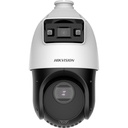
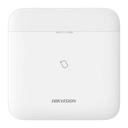
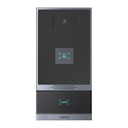
Many devices support Hik-Connect directly without a recorder, such as the DS-2DE2C400MWG-E pan-tilt camera, IP intercom kits and AX PRO alarm panels.
If you would rather we handle the whole setup, book our installation and setup service.
Devices that work with Hik-Connect
- Hikvision DS-7604NXI-K1/4P – 4-channel PoE NVR
- Hikvision DS-7608NXI-K1/8P – 8-channel PoE NVR
- Hikvision DS-2DE2C400MWG-E – 4 MP outdoor pan-tilt camera with hybrid light and auto-tracking
- Hikvision DS-KIS604-P – IP villa intercom kit with Hik-Connect
- Hikvision DS-PWA96-M-WB – AX PRO wireless alarm panel
Frequently asked questions
Is the Hik-Connect app free?
Yes, the app is free to download and use on Android and iOS.
Why do the cameras load slowly on my phone?
Usually because of the upload speed of the internet at the site. Pick a lower quality for remote viewing and keep the high quality for recording on the device.
How many people can watch the cameras?
You can share the device with several users from the app and set what each of them is allowed to do.
Need help choosing the right Hikvision system?
Rasid's team in Riyadh helps you pick the right models for your site and handles supply, installation, setup and mobile access for homes and businesses in Saudi Arabia. Message us on WhatsApp +966559790746 or request a solution for your project.